Ticket System with SharePoint, Power Apps and Power Automate
In this post, I’ll show you how to build a complete ticket system using SharePoint lists, a Power App and an automated workflow with Power Automate. The solution works entirely with Microsoft 365 standard licenses and can be flexibly expanded — even up to using an autonomous AI agent.
Goal of the Ticket System
We are building a support system that, in this example, handles questions around Power Apps. The structure can easily be adapted to your company’s needs.
Key elements:
- Categorization of tickets via modules
- Automatic assignment of responsible persons
- Status model
- Automated flow on status change
- Support for attachments
- Power App as the user interface
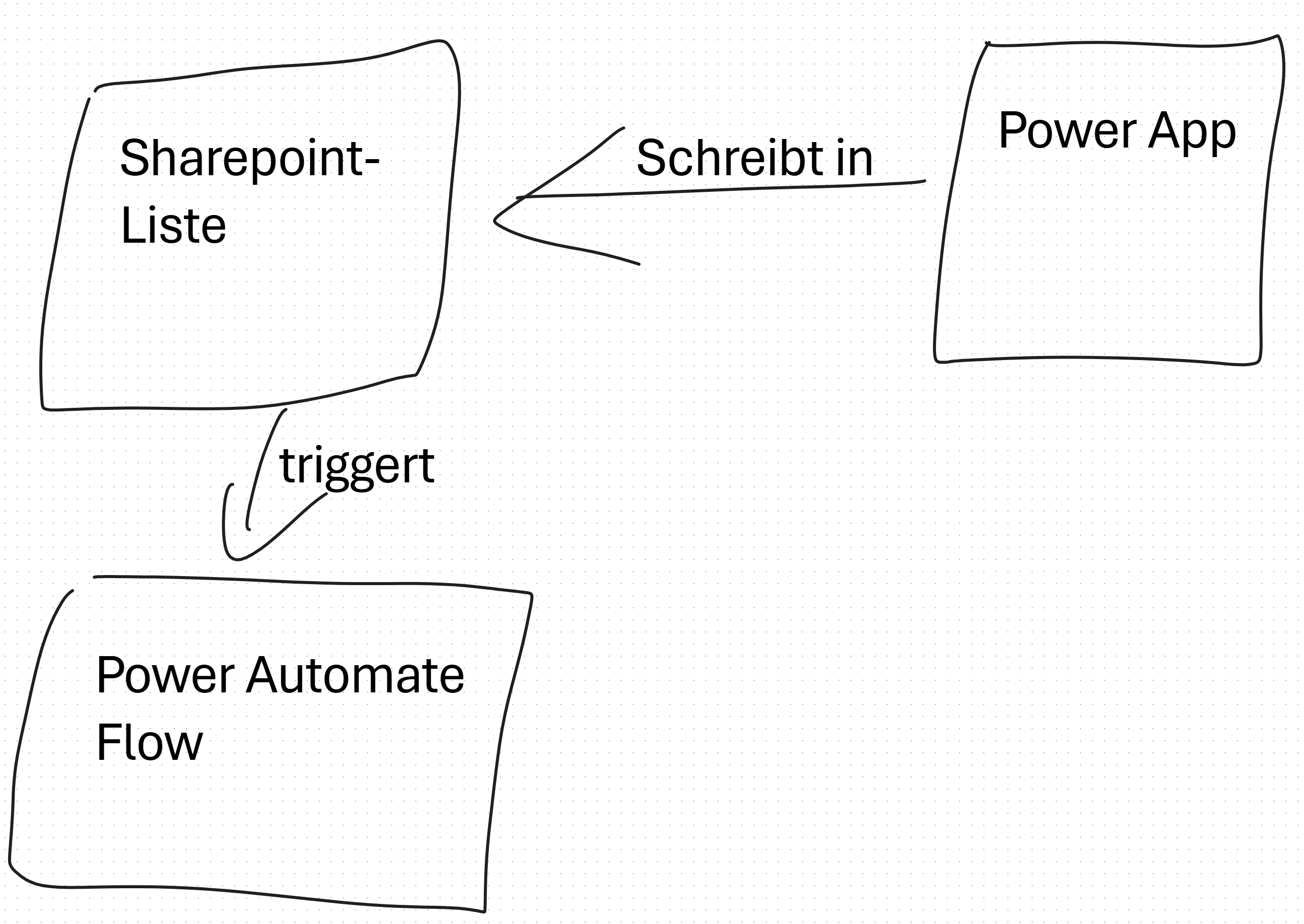
The Power App writes to the central SharePoint list, which in turn triggers the Power Automate flow for user communication.
SharePoint Lists as Data Foundation
We need three lists:
- Tickets (AI_Ticketsystem)
- Status (AI_Ticketstatus)
- Modules (AI_Ticketmodule)
List “Status”
This list is later used as a lookup in the ticket system.
Fields:
- Title (default)
Entries:
- Neu
- In Bearbeitung
- Abschluss durch KI-Agenten
- Abgeschlossen
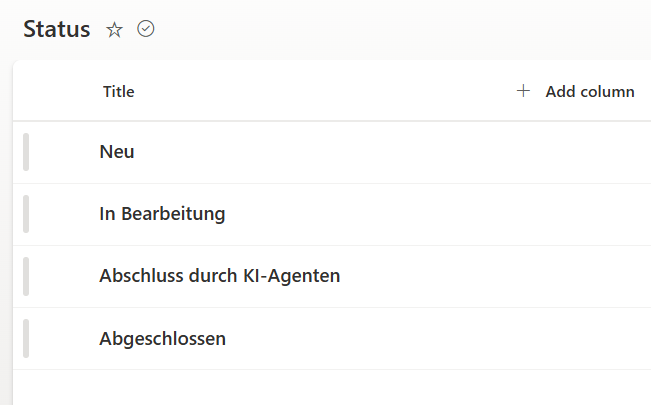
The Status list contains all relevant statuses of the ticket system.
List “Modules”
Here you define subject areas and assign responsible persons. The idea: when a ticket is first submitted, a (first) responsible person can already be set. Responsibility can be adjusted later.
Fields:
- Title
- Verantwortlich (Person or Group)
Entries:
- SharePoint
- Dataverse
- Others
The Modules list contains all relevant modules and their responsible persons.
List “Tickets”
This list is the heart of the system.
Fields:
- Title
- Fragestellung (Text)
- Antwort (Text)
- Status (Lookup Status)
- StatusRef (Lookup Status, for change detection)
- Modul (Lookup Module, required)
- Verantwortlich (Person/Group)
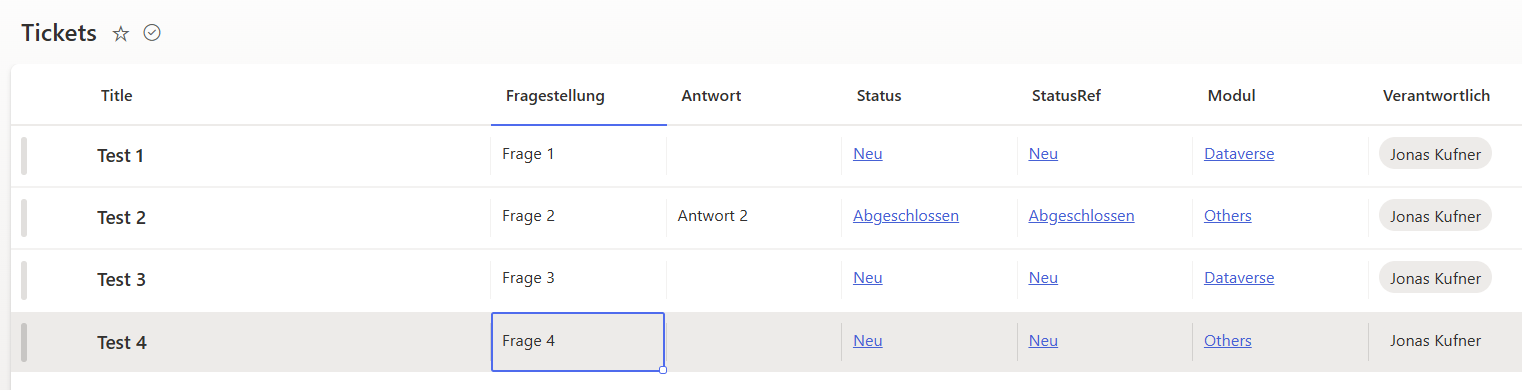
The Tickets list stores tickets and references to status, modules and responsible persons.
Power Automate Flow
The flow handles the following tasks:
- Check whether a responsible person is already set
- If not: load the module owner
- Inform the requester via email
- Update the reference status (to prevent infinite loops)
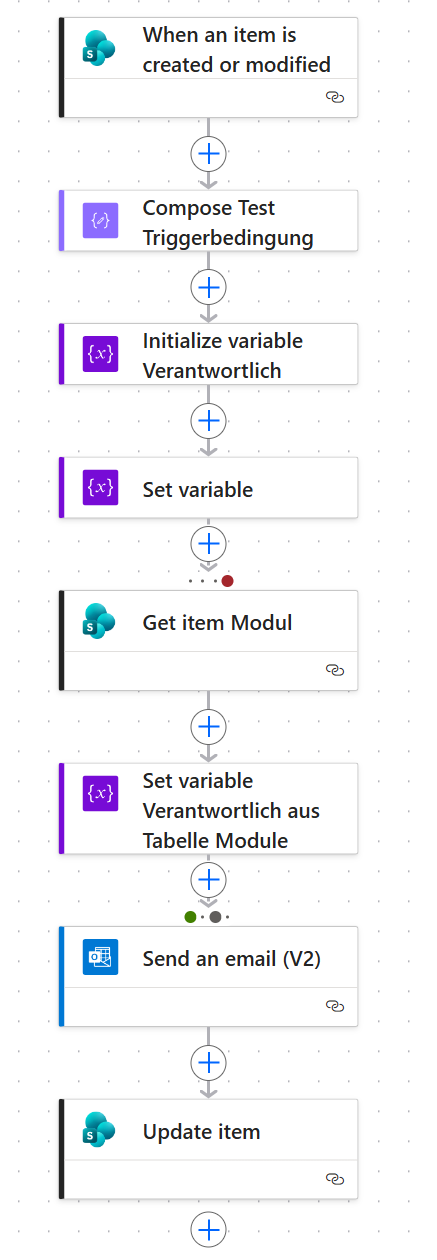
Overview of the Power Automate flow that processes tickets and user communication.
Trigger
We use the trigger:
When an item is created or modified
However, the flow should only run if the status has actually changed. For this we use a trigger condition:
@not(equals(triggerOutputs()?['body/Status/Value'],triggerOutputs()?['body/StatusRef/Value']))
Only when Status and StatusRef differ does the flow start.
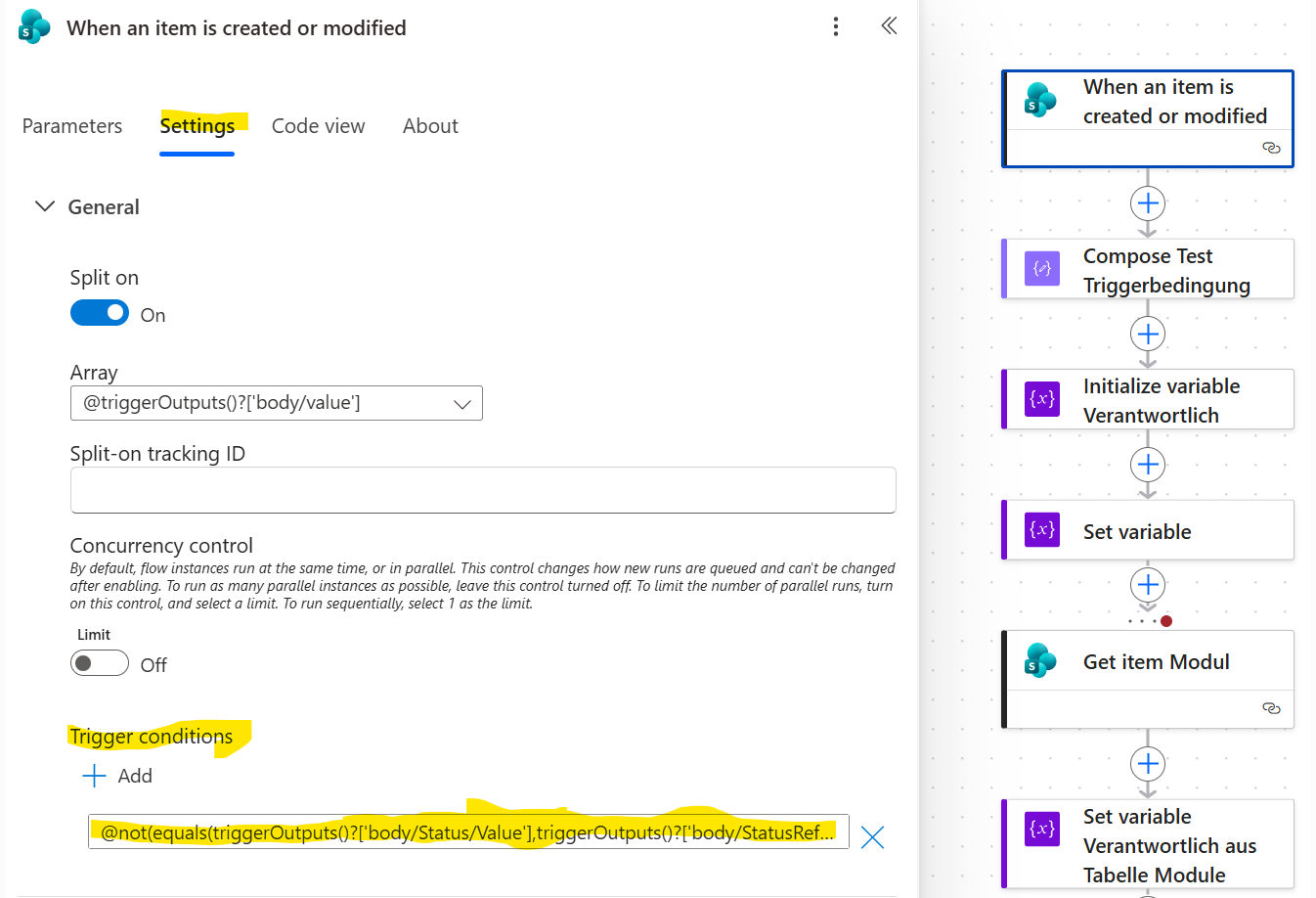
The flow starts only when the status differs from the reference status, controlled via a trigger condition.
Checking the Trigger Condition
For debugging, you can add a Compose action and temporarily insert the same expression there to check the result.
Initialize Variable “Verantwortlich”
Create a variable:
- Name: Verantwortlich
- Type: String
The value will be filled dynamically later.
Set Variable “Verantwortlich” (if already present)
The value is taken from the current ticket. This action fails if no responsible person is stored yet — this is intentional, because in that case we fall back to the Modules list in the next step.
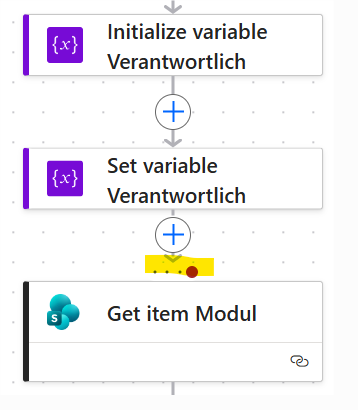
The responsible person is taken from the ticket. If that fails, it is determined via the Modules list.
Load Module Owner
Action: Get item
Source: AI_Ticketmodule
ID: Module ID from the ticket
This action is configured so that it only runs if the previous step failed (no responsible person in the ticket).
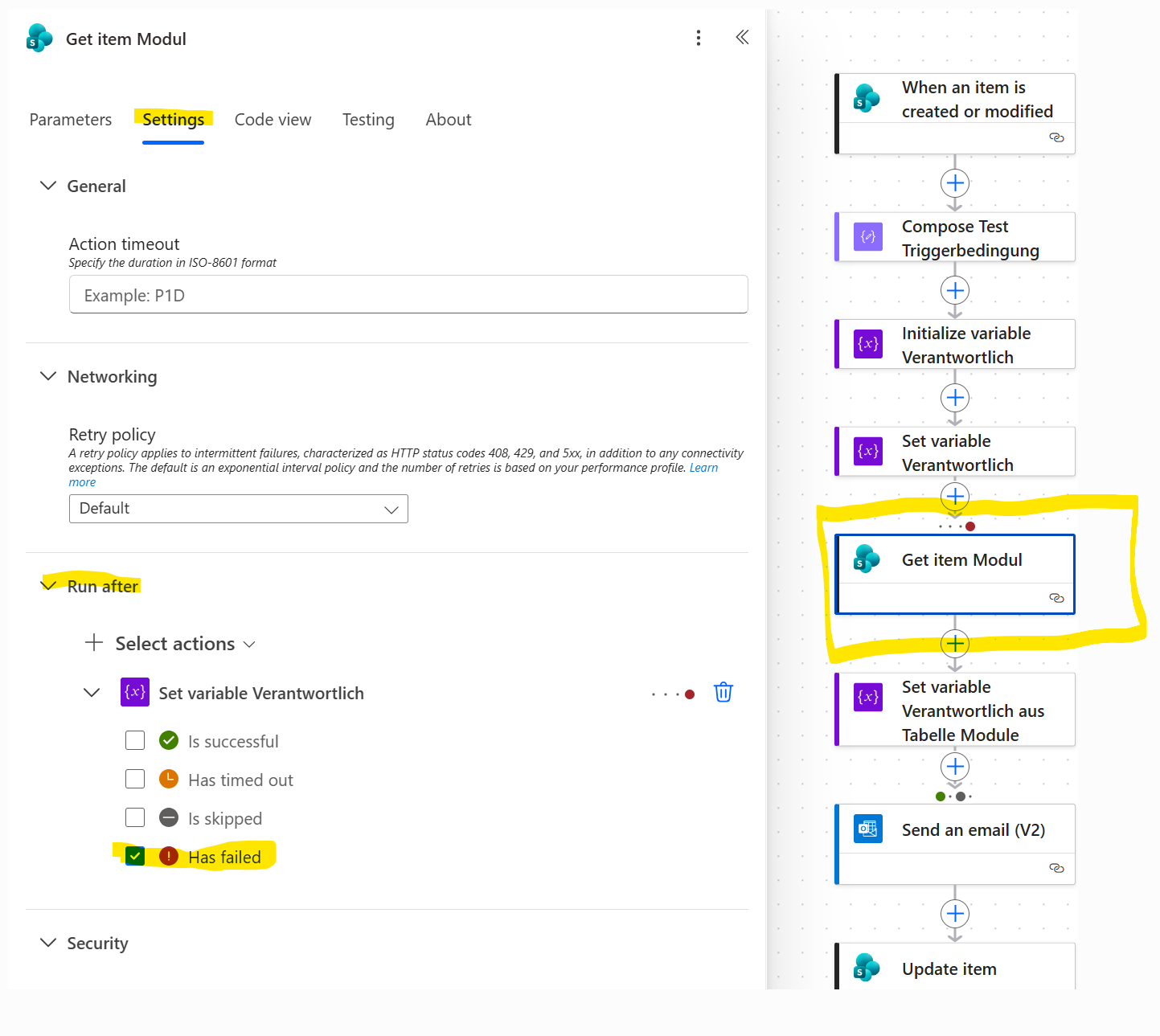
This action only runs if the previous action failed – i.e. when no responsible person was stored in the ticket yet.
Set Variable from Module List
The variable Verantwortlich is now filled with the claim value of the responsible person from the Modules list.
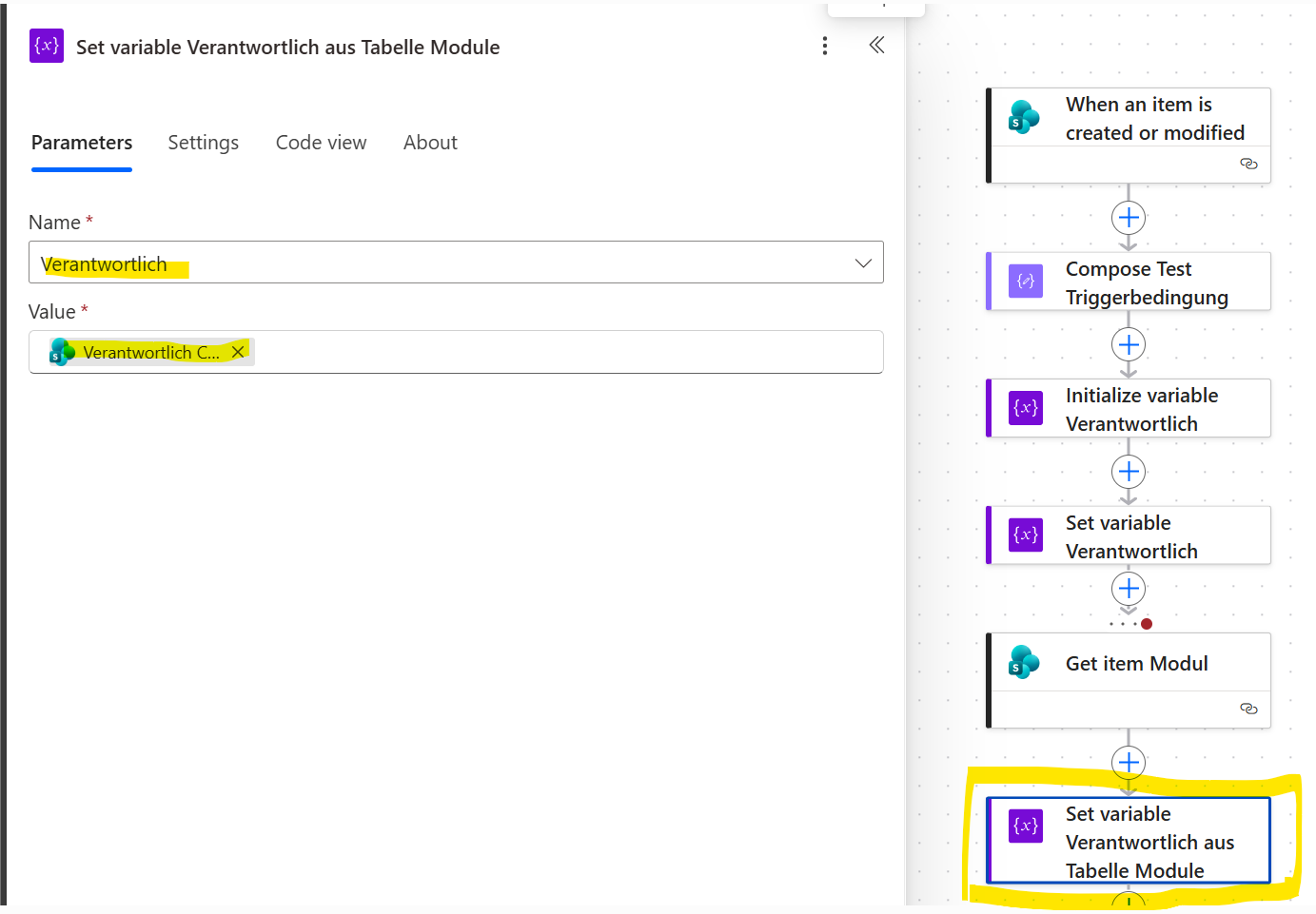
The person determined from the Modules list is stored in the variable ‘Verantwortlich’.
Send Email to Requester
- To: Created by (Email)
- Subject: e.g. title of the ticket
- Body: current status and direct link to the item
This action should run both when the responsible person was found directly on the ticket and when it was determined via the Modules list (configure the run-after settings accordingly).
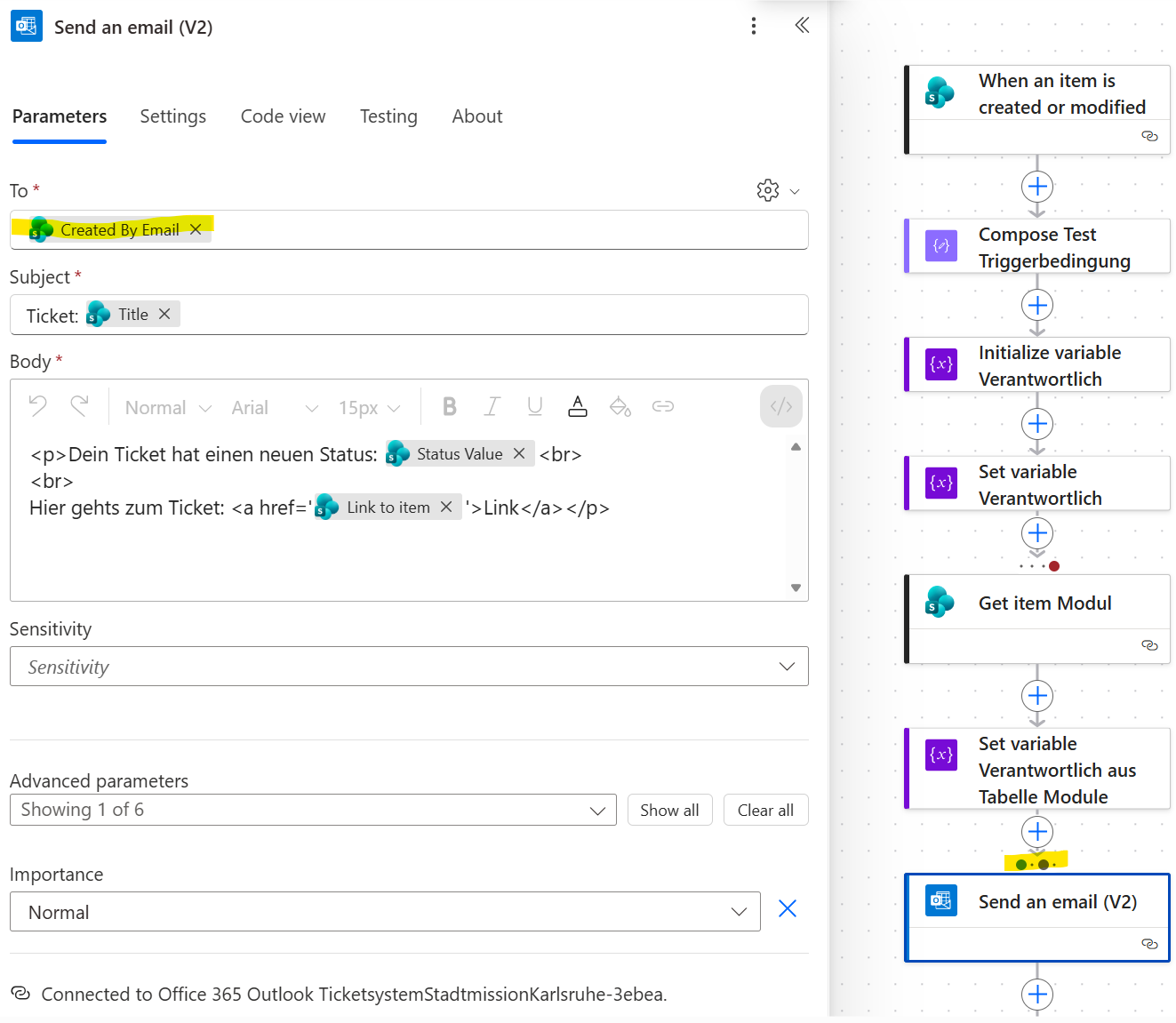
The email to the requester should always be sent – regardless of how the responsible person was determined.
Update the Ticket
Finally, the ticket itself is updated:
- StatusRef is set to the same value as Status
- Verantwortlich is set to the value of the variable Verantwortlich
This prevents the trigger from firing again immediately, which would otherwise cause a loop.
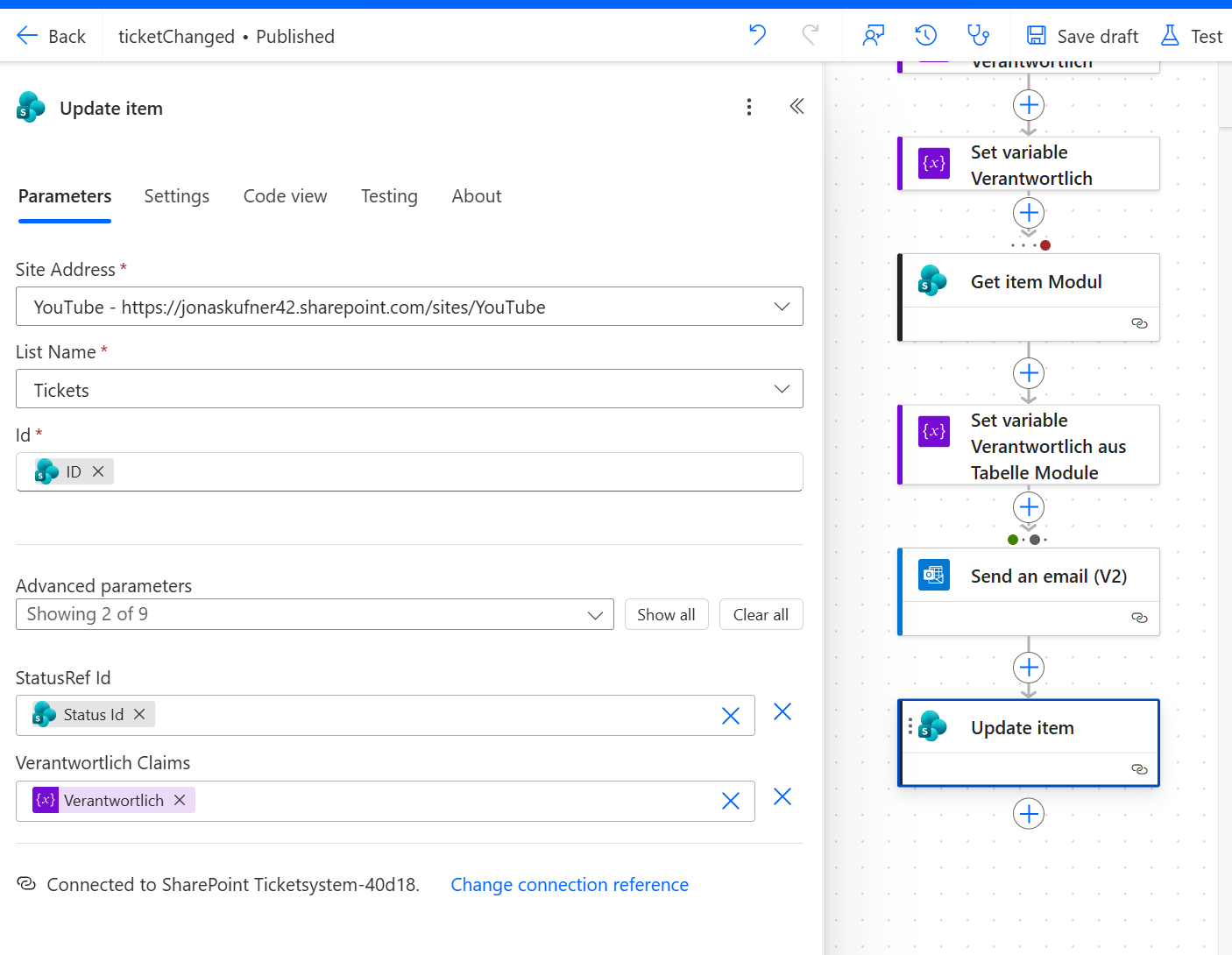
The last action updates the reference status and the responsible person. Setting StatusRef = Status prevents an endless loop.
Power App Form
We create a simple Power App directly from the SharePoint Tickets list:
Integrate → Power Apps → Create an app
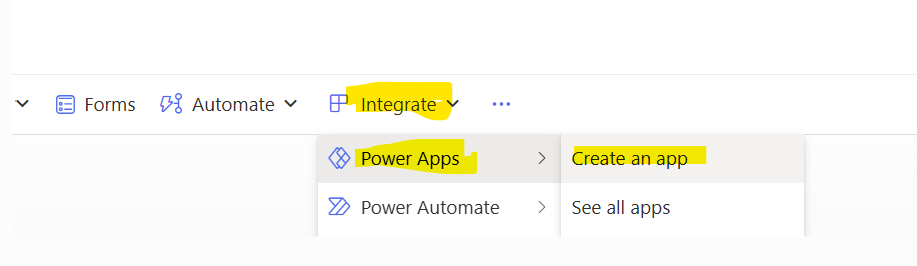
You can create a standard Power App for reading and editing SharePoint list rows directly from the list. We build on this and adapt the app to our needs.
Adjusting the Form
Next, we adapt the Power App form. We hide unnecessary fields and set default values (especially for Status).
Remove Unneeded Fields
Fields that are not required when creating a new ticket (for example the answer to the question) can be removed from the form:
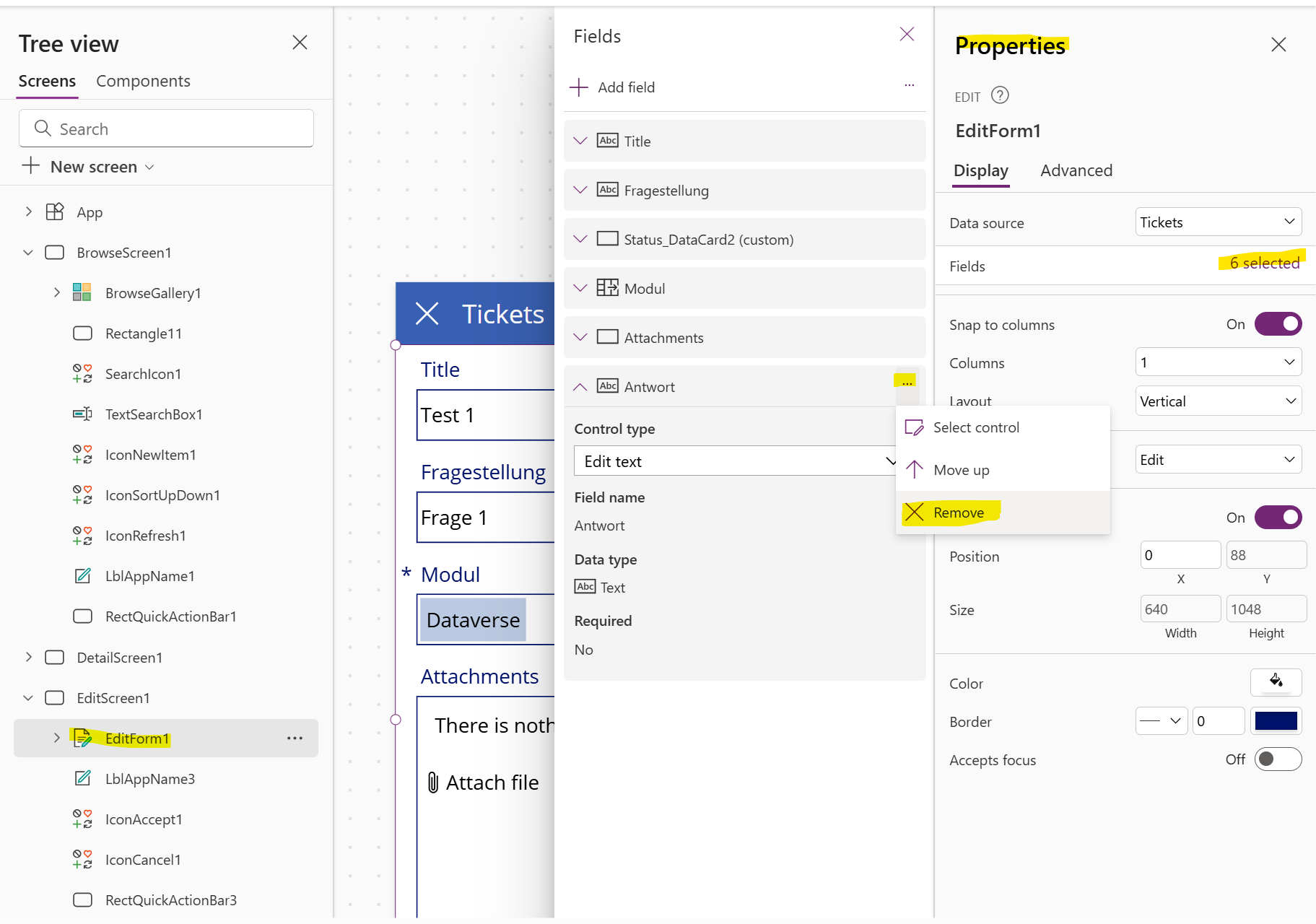
Fields that are not relevant when creating a ticket (e.g. answer/solution) are best removed from the form. They will be used later in the process.
For creating a new ticket, it usually makes sense to remove the following fields from the form:
- Antwort
- StatusRef
- Verantwortlich
Set Default for Status
For this approach, the Status field must always be “Neu” at the time the ticket is created. This ensures that Status differs from StatusRef and the processing flow is triggered.
In the DefaultSelectedItems property:
{
  '@odata.type': "#Microsoft.Azure.Connectors.SharePoint.SPListExpandedReference",
  Id: "1",
  Value: "Neu"
}
Hide Status Field
Since the status is always Neu when a ticket is created, it doesn’t provide additional value to show it in the form. You can hide the field via the Visible property:
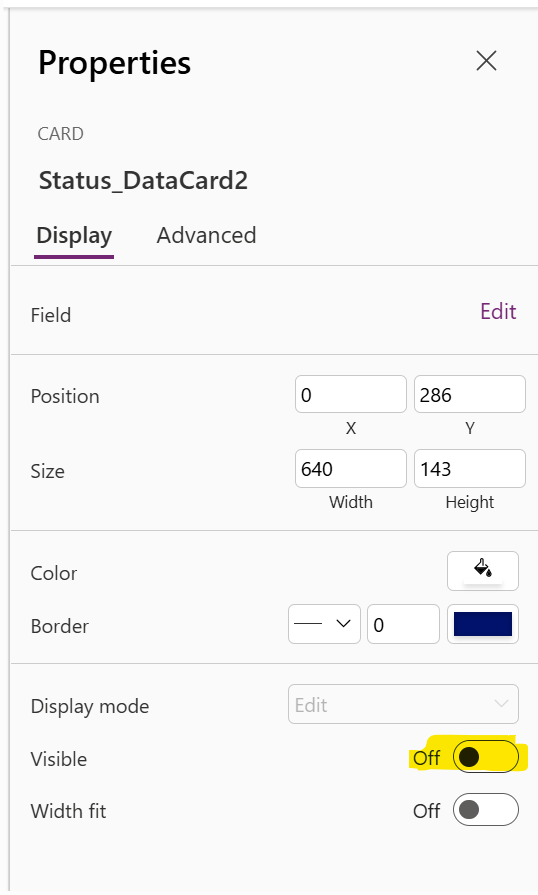
Fields with default values must remain in the form, but since the value is always the same, it often makes sense to hide the field from the user.
Test
Create a ticket, change the status and verify:
- Is the flow triggered?
- Is a responsible person set?
- Is the notification sent correctly?
- Is the reference status updated?
Outlook and Extensions
Future expansion stages could include, for example:
- Autonomous AI support agent
- Creating tickets via email
- Creating tickets via chatbots
- Uploading photos directly from smartphones
- Additional logic based on community feedback
Download
You can download the solution from my website.
You’ll find the link under Downloads – it points to a GitHub repository.
YouTube
You can also find this content on my YouTube channel:

Support
Do you need help implementing a ticket system in your company?
Do you have requirements you’d like to discuss?
Can you imagine working together?
Feel free to contact me – you’ll find ways to reach me under Contact.