
First-Level Support Agent with Microsoft Copilot Studio
In this post, I show you how to build an autonomous first-level support agent with Microsoft Copilot Studio and integrate it into a ticket system based on SharePoint, Power Apps and Power Automate.
The agent works exclusively with a defined knowledge base, automatically answers recurring support questions and reliably hands over complex or unanswerable requests to human colleagues.
Why an Autonomous First-Level Support Agent?
In many organizations, support teams receive identical or very similar requests every day, for example:
- first steps with applications
- finding and opening apps
- new features and preview functionality
- questions about Dataverse
- typical error messages
An autonomous first-level support agent takes over exactly this initial support:
- fast answers around the clock
- consistent quality
- significant relief for support teams
Important:
The agent answers exclusively within its knowledge base. If a question cannot be answered, it is deliberately handed over to a human colleague. There is no hallucination.
Solution Architecture
The solution consists of the following components:
- Microsoft Copilot Studio (support agent)
- Knowledge base (e.g. Microsoft Learn and internal sources)
- SharePoint list as ticket system
- Power App as user interface
- Power Automate flow for process orchestration
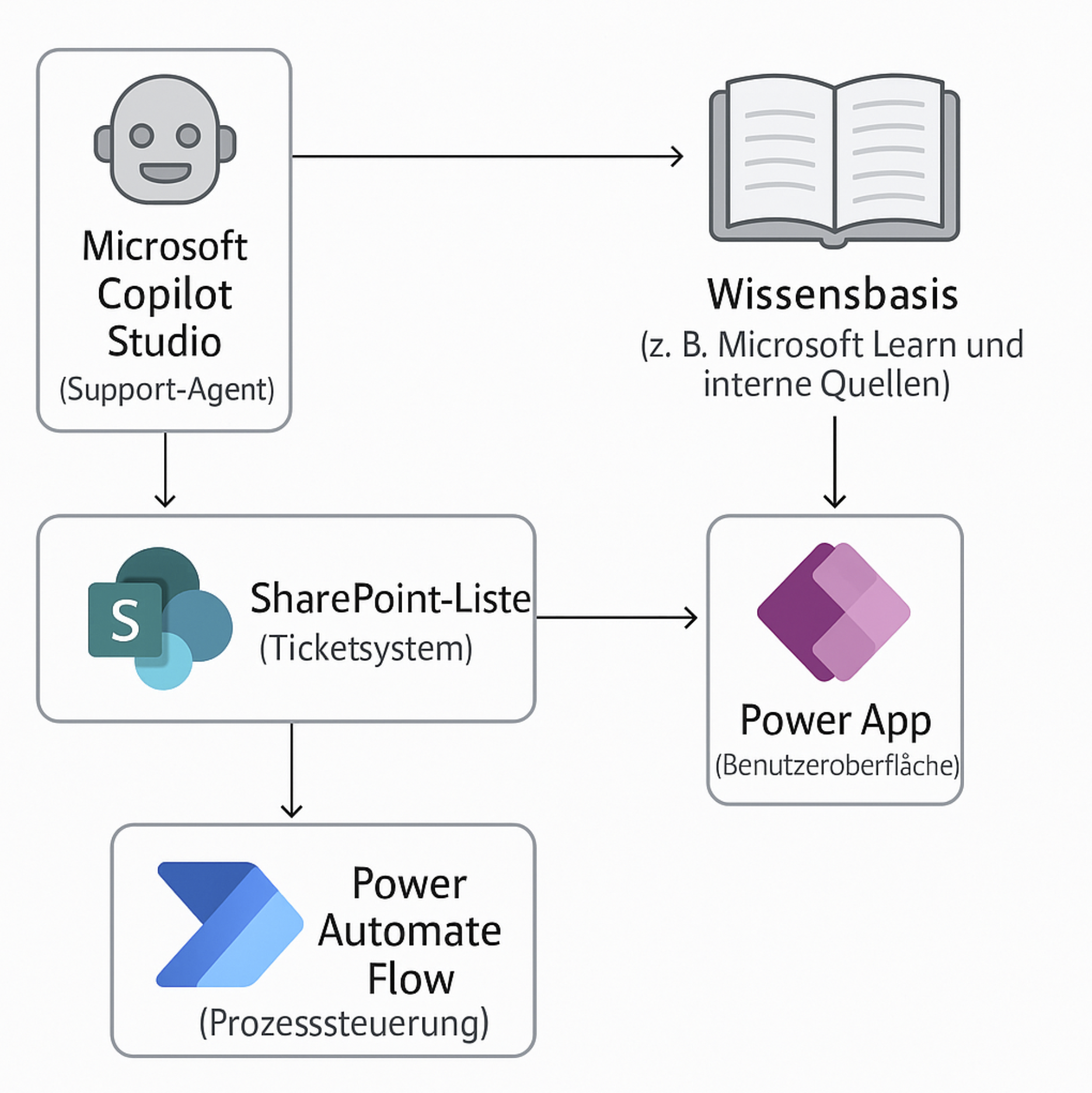
The architecture consists of five components.
Creating the Support Agent in Microsoft Copilot Studio
We start in Microsoft Copilot Studio at copilotstudio.microsoft.com.
Click Create and then New agent to create a new support agent.
Define Agent Properties
In the first step, Copilot Studio asks for the agent’s properties.
Here, we fully define the agent’s behavior using a natural language prompt.
The agent should not respond freely, but always return a structured JSON object. This design later enables simple processing in Power Automate.
The prompt used is:
Handle as a first-level expert for the Microsoft Power Platform and provide friendly and professional support. Answer requests exclusively in the form of a JSON object with the attributes “Erfolg” (true if an answer was found, otherwise false) and “Antwort” (the answer found or an empty string). Support only topics around getting started, finding and launching apps, new features and preview experiences, plans, canvas apps, model-driven apps, the mobile Power Apps app, Dataverse, resources, troubleshooting and responsible AI. Do not answer questions outside these topics and use only the German language. Never add information that is not contained in the JSON object. If a question cannot be answered based on the knowledge base, set “Erfolg”: false and “Antwort”: “”.
Name the Agent
Next, we assign a name to the agent.
Example:
FirstLevelSupportAgent
Agent Behavior
The agent has a clearly defined task:
- check whether an answer exists in the knowledge base
- if yes, return a JSON object with Erfolg = true and the answer
- if no, return a JSON object with Erfolg = false
Additional topics or behavior variants are possible but deliberately not used here.
Define the Knowledge Base
As the knowledge base, we use official documentation around the Microsoft Power Platform.
Source:
https://learn.microsoft.com/de-de/power-platform/
Later, internal documents, wikis or additional sources can be added:
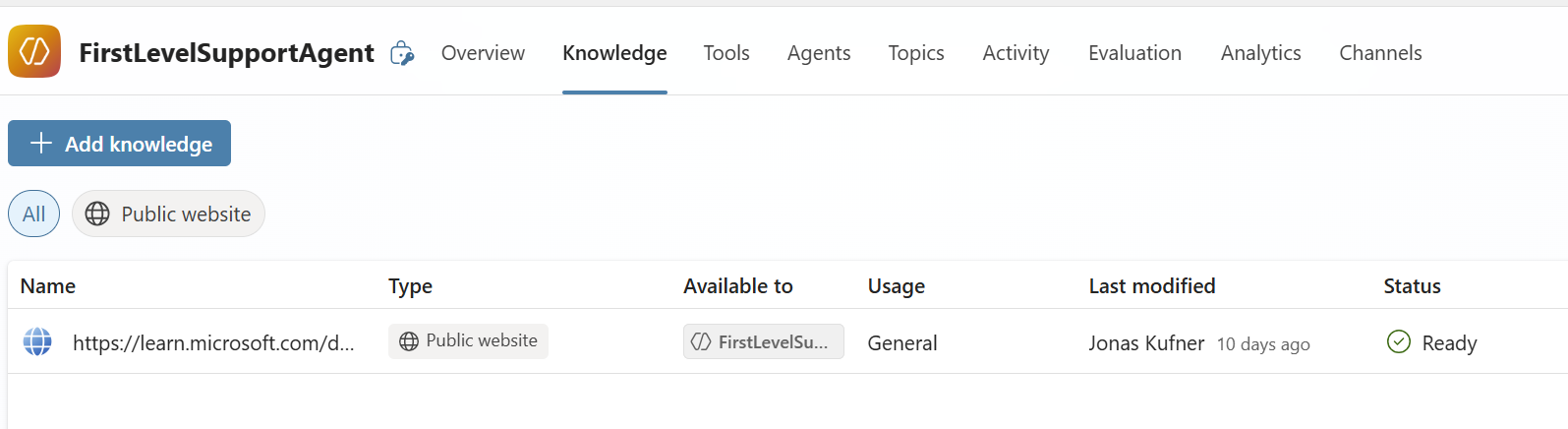
The knowledge base configuration in Copilot Studio.
Testing the Agent
Example of a successful request:
How can I create a canvas app?
The agent returns a JSON object with Erfolg = true and a suitable answer.
Example of an unsupported request:
How can I model a workflow in Camunda?
The agent returns Erfolg = false. We later use this information to hand over the ticket to a human processor.
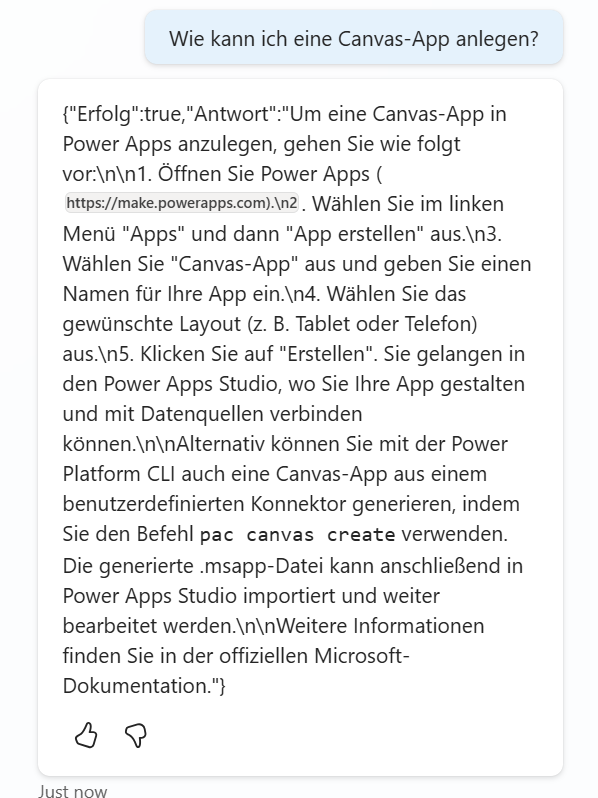
The agent returns a structured JSON object.
Integration into the Ticket System
The support agent is now integrated into an existing ticket system. This system is described in the blog (SharePoint ticket system) and on YouTube (Ticket system with SharePoint & Power Automate | Complete step-by-step tutorial).
The ticket system consists of:
- a central SharePoint list
- a Power App for ticket creation
- a Power Automate flow for status processing
When a ticket is created or its status changes, the flow processes the ticket automatically.
Adapting the Power Automate Flow
The AI agent should only become active when a ticket is newly created.
Therefore, at the end of the existing flow, we check whether the ticket status equals “Neu”.
The flow overview shows all actions, which are briefly explained below:
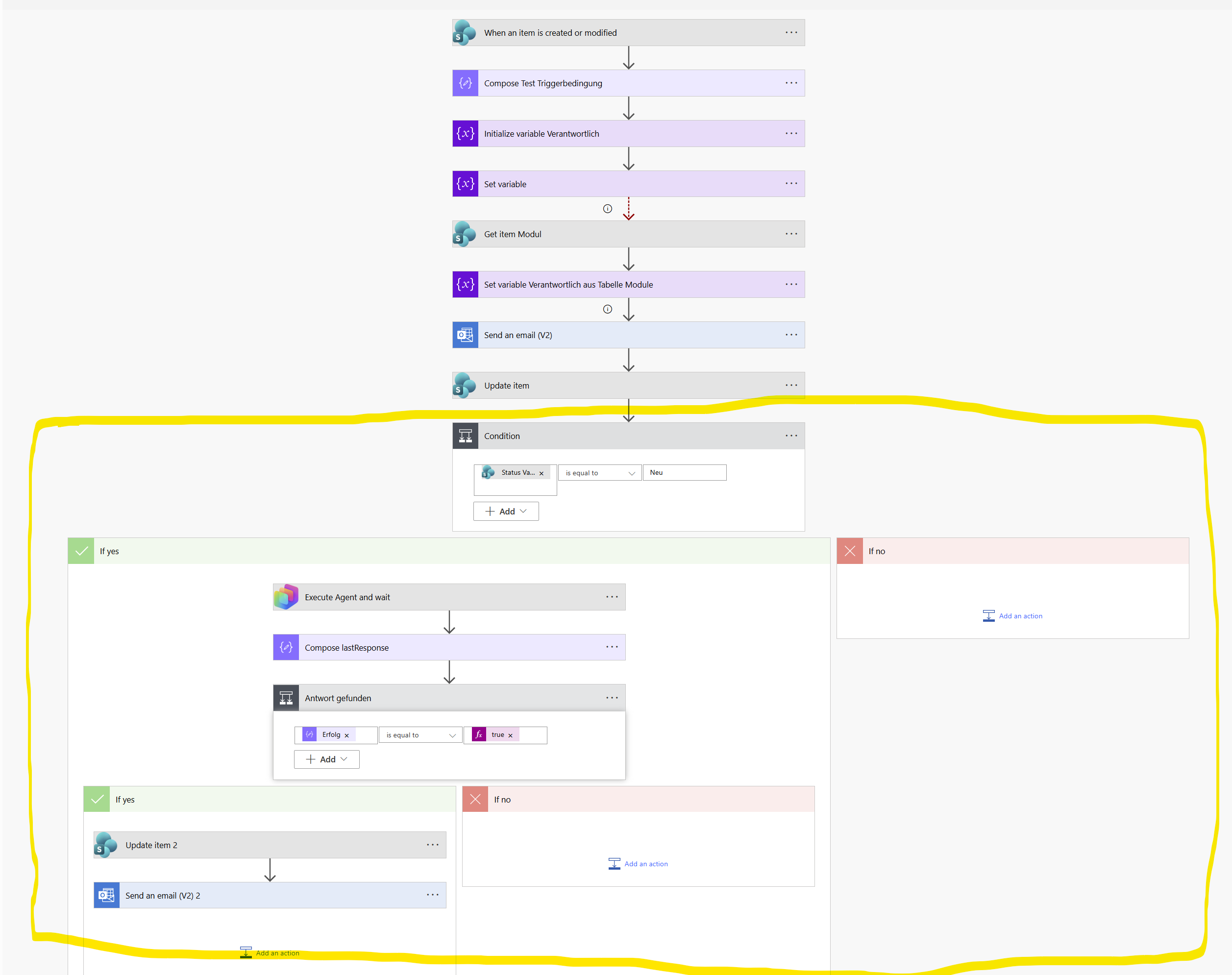
The flow adapted for the AI agent. Changes are highlighted in yellow.
Execute Agent and Wait for Response
If the ticket is new, the action Execute Agent and wait is executed.
This action calls the support agent and waits for its response.
The return value is a string describing a JSON object.
Process the JSON Response
In the next step, we convert the string into a real JSON object.
For this, we use the following expression in a Compose action:
json(body('Execute_Agent_and_wait')?['lastResponse'])
From this point on, we can directly access the contents.
Decision Based on the Agent Response
Check whether the agent found an answer:
outputs('Compose_lastResponse')?['Erfolg']
Access the actual answer:
outputs('Compose_lastResponse')?['Antwort']
Automatically Update the Ticket
If the agent found a solution:
- the answer is written into the SharePoint ticket
- status and reference status are updated
- the requester is informed via email
Important:
At the end of the flow, the reference status is always set equal to the current status. This prevents the flow from restarting and causing an infinite loop.
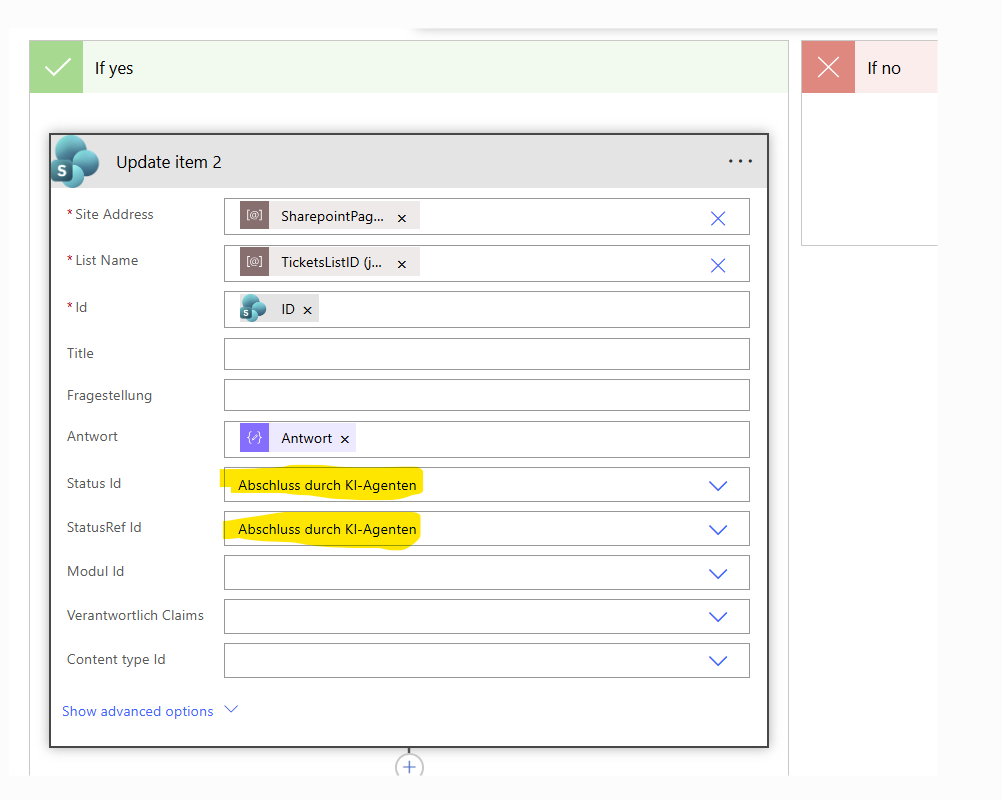
The reference status must be aligned with the status at the end of the flow to prevent infinite loops.
Conclusion
With Microsoft Copilot Studio, powerful first-level support agents can be created with manageable effort. Combined with Power Automate, these agents can be directly integrated into existing business processes.
The result:
- reduced support effort
- faster response times
- controlled and traceable AI usage
YouTube
There is a corresponding YouTube video for this blog post. When loading the YouTube video, personal data may be processed by YouTube. By clicking “Load video”, you accept this. See also Privacy Policy.

Thank you for reading.
If you have questions or suggestions, feel free to get in touch.